Most guides that promise to "connect Google Analytics to ChatGPT" don't connect anything. They tell you to export a GA4 report to CSV, paste it into ChatGPT, and ask about the numbers in the file. That is a copy-paste frozen at the moment of export, blind to every metric you didn't include.
A live connection lets ChatGPT pull data from your GA4 property on demand, run the comparison you asked for, and answer from current numbers. Since September 2026 that connection is the official ConvRadar plugin in ChatGPT's plugin directory. It works on any ChatGPT plan, including Free, and needs no connector URL. Setup is three clicks and about two minutes, plus the initial GA4 sync.
Two ways to "connect" GA4 to ChatGPT, and only one is live
The manual way. You open GA4, build a report, export it, and paste the rows into ChatGPT. ChatGPT reasons over a static file. A different date range, a new segment, or a forgotten metric sends you back into the GA4 UI to rebuild the report.
The plugin way. You install the ConvRadar plugin once and connect your GA4 property. From then on ChatGPT calls the plugin's tools to pull funnels, traffic breakdowns, device splits and anomalies without you opening GA4. Ask "why did mobile checkout drop last week?" and ChatGPT fetches the funnel, splits it by device and source, and names where the loss concentrates.
Under the hood the plugin runs over MCP (Model Context Protocol), the open standard ChatGPT apps and plugins are built on. You never see that part: no server URL, no config file, no API key.
What you need
- A GA4 property you can read (Viewer access or higher).
- A ChatGPT account on any plan: Free, Go, Plus, Pro, Business or Enterprise. On Business and Enterprise workspaces an admin may need to allow the plugin first.
- About two minutes. No terminal, no
pip, no JSON.
Step 1: open the plugin and click Connect
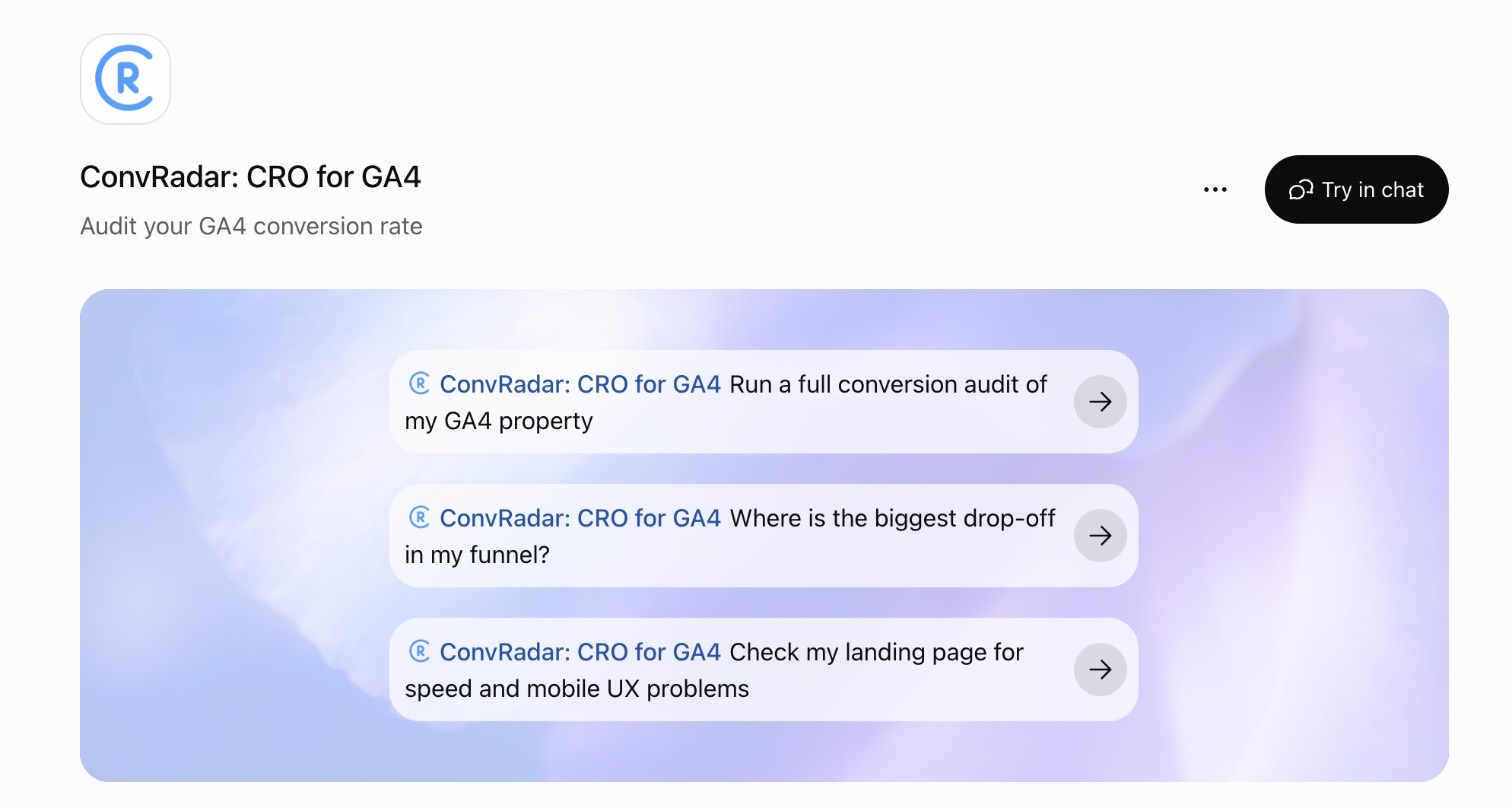
Open the ConvRadar plugin in ChatGPT. You can also open Plugins in the ChatGPT sidebar and search for ConvRadar. The listing is called ConvRadar: CRO for GA4.
Click Connect. ChatGPT opens a ConvRadar window to link your account.
Step 2: sign in with Google and pick your GA4 property
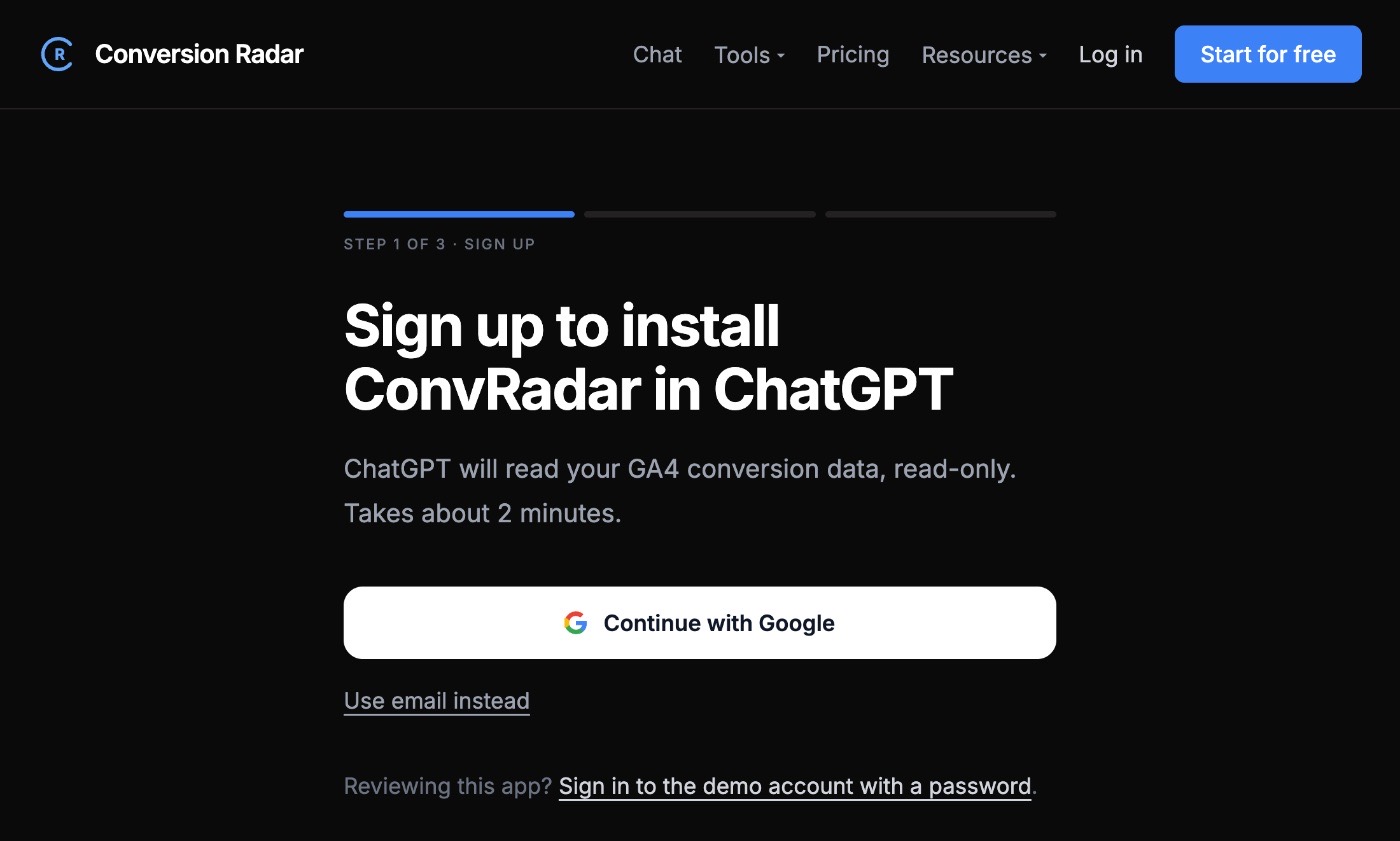
In that window, sign in with the Google account that has access to your GA4 property. A new account is created on the Free plan, no card. Authorize read-only GA4 access, then pick the property you want ChatGPT to read. The connection can never write to or change your analytics.
On connect, ConvRadar loads the last 90 days of the property. Integrations that collect only from the moment of install can't answer "compare this week to two months ago" for two months. With the backfill, that comparison works in your first message. The first sync usually finishes within minutes; on large properties it can take longer, and ChatGPT tells you when data is still loading.
Step 3: return to ChatGPT and ask
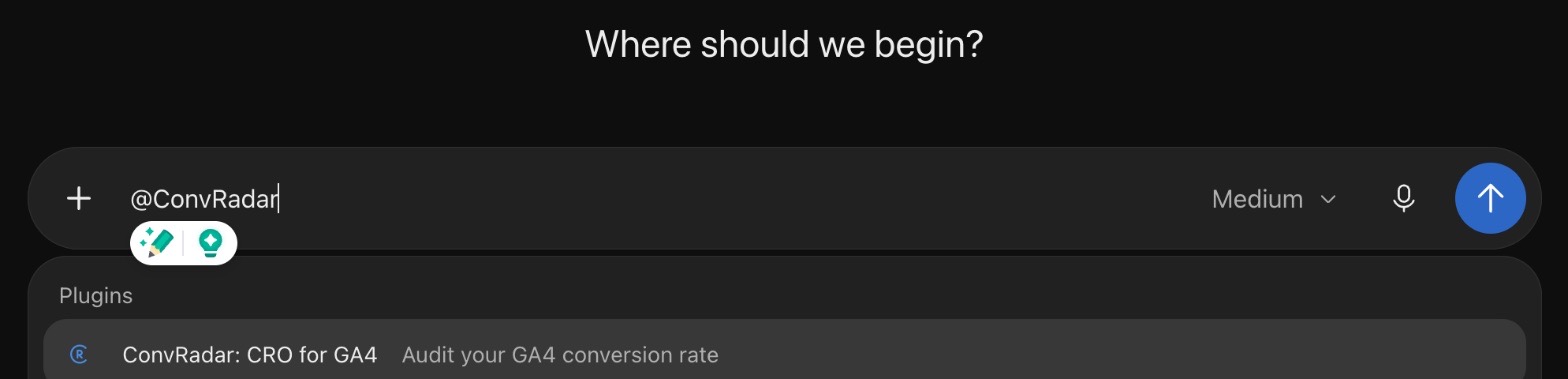
Click Return to ChatGPT. In any chat, type @ and pick ConvRadar: CRO for GA4, then ask a real question. A good opener: "Where am I losing conversions?"
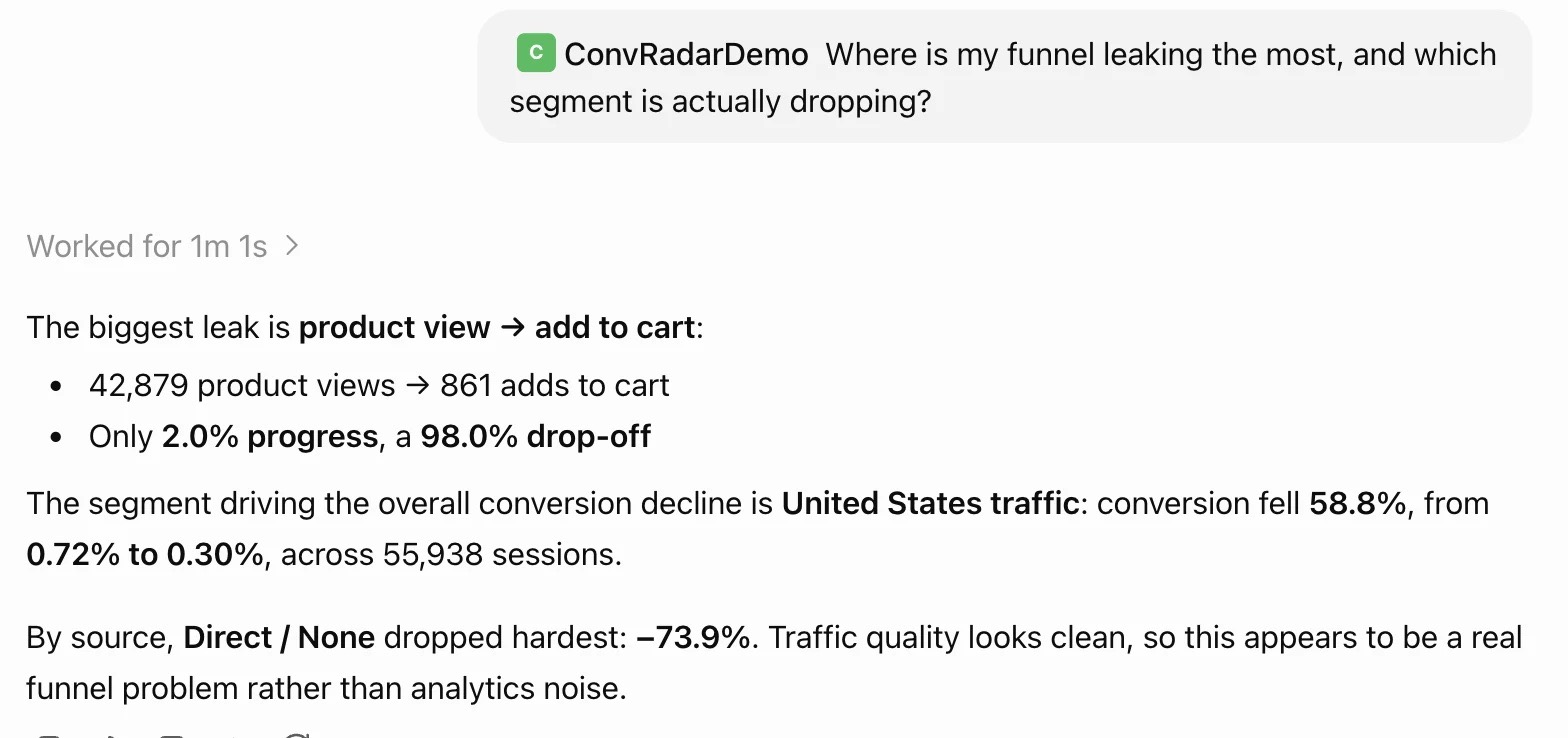
ChatGPT calls the plugin's tools, pulls live data, runs the diagnostics, and answers. A full audit takes 30 to 60 seconds because it makes several calls back to back; follow-ups come back in seconds.
Other first prompts:
- "Compare last week to the previous week. Where did I lose conversions and where did I gain?"
- "Diagnose why my mobile checkout completion is below 1%."
- "Which landing pages have the highest drop-off relative to their traffic?"
- "Is my paid traffic quality declining? Look at engagement, not sessions."
The GA4 prompts library has more, and the conversion rate drop diagnostic walks through the case most people hit first. To see which visitors ChatGPT itself sends you and whether they convert, read how to track AI traffic in GA4. The prompts work the same in ChatGPT and Claude.
What changes once it's live
A GA4 dashboard shows what you asked it to show, and you still interpret it. A ChatGPT chat with GA4 connected does the lookups and the comparison and hands back a diagnosis.
The questions change too. When every answer costs a report, you only ask what fits a report. When you can ask anything, you ask "is something off this week?", "did the pricing change help?", "which channel buys users and which buys sessions?". Anomaly detection runs across every dimension at once, so the third-best landing page that lost 40% of its conversions shows up even when you weren't looking at it.
The tool list, OAuth scopes and endpoint details are at convradar.com/docs/mcp.
ChatGPT vs Claude: the setup difference
ConvRadar works in both. The data, the tools and the answers are the same; only the install path differs.
| ChatGPT | Claude | |
|---|---|---|
| How you install | Official plugin: open it, click Connect | Add custom connector, or the one-click link from your ConvRadar account |
| Plan needed | Any ChatGPT plan, including Free | A Claude plan with custom connectors |
| URL to paste | None | https://mcp.convradar.com/mcp (prefilled by the one-click link) |
| Auth | Google sign-in on Connect | Google sign-in on first use |
The no-code Claude setup guide covers the Claude path. For which assistant to put your analytics work in, the Claude vs ChatGPT for analytics comparison breaks down where each is stronger. One ConvRadar account works in both at once.
Troubleshooting
ChatGPT doesn't use ConvRadar when I ask. Type @ and pick ConvRadar: CRO for GA4 before the question, or phrase it as a data ask ("pull my funnel for the last 7 days") so ChatGPT knows to call the plugin.
The plugin isn't available in my workspace. On ChatGPT Business and Enterprise an admin controls which plugins members can use. Ask them to allow ConvRadar: CRO for GA4.
It answers from the wrong property. The plugin reads the property you picked on Connect. Switch it in your ConvRadar account, or disconnect the plugin in ChatGPT and connect again with the Google account that owns the right property.
It says data is still loading. The 90-day backfill is running. Ask again in a few minutes; questions about the last few days usually work before the full history is in.
FAQ
Can ChatGPT connect to Google Analytics? Yes. Install the official ConvRadar plugin, click Connect, sign in with Google and pick your GA4 property. ChatGPT then pulls funnels, traffic, devices, geos and anomalies on demand. Pasting a CSV export also "works", but it's a static snapshot, not a live connection.
Do I need ChatGPT Plus or Pro? No. The ConvRadar plugin works on every ChatGPT plan, including Free. ConvRadar has its own Free plan with a weekly question limit; paid plans remove the limit.
Do I need code or API keys?
No. The setup is three clicks in the browser. There is no API key (Google sign-in handles access), no pip, and no config file. If you'd rather self-host Google's official GA4 server, that route needs Python and a terminal; the GA4 MCP server overview compares the options.
Is it safe to connect GA4 to ChatGPT this way? The plugin uses read-only GA4 scopes and never writes back to your property. Its tools only read and analyze, and you can disconnect it in ChatGPT or revoke access from your Google account in one click. What ChatGPT does with the numbers it reads depends on your ChatGPT data settings; is it safe to connect GA4 to AI covers that part. Security details are at convradar.com/security.
Can I use the same connection with Claude? Yes. The same ConvRadar account works in Claude, ChatGPT, Cursor and other MCP clients. Your property, history and change log carry over.
What happened to the old ChatGPT plugins? OpenAI retired the 2023 plugin store and replaced it with apps and plugins built on MCP. ConvRadar is one of the new ones, reviewed by OpenAI and listed in ChatGPT's plugin directory. A tutorial that tells you to install a "Google Analytics plugin" from the old store is out of date.
Try it on your own numbers
Open the ConvRadar plugin in ChatGPT, connect your GA4 property, and ask the question that has bugged you for a month. Any ChatGPT plan, no card for ConvRadar's Free plan, and the same account works in Claude if you want it there too. The seven questions it answers best, with the prompts to paste, are on ConvRadar in ChatGPT.